How do I cancel my recurring Portable North Pole subscription or automatic renewal?
If you want to stop the automatic renewal of your Magic Pass, this is the right article. Cancelling stops future charges; you keep your Magic Pass until the end of the current period.
The steps depend on where you bought your subscription.
If you bought on the PNP website (card, PayPal, Google Pay or Apple Pay)
- Go to portablenorthpole.com and log in with the email of your PNP account (we send you a magic login link, no password needed).
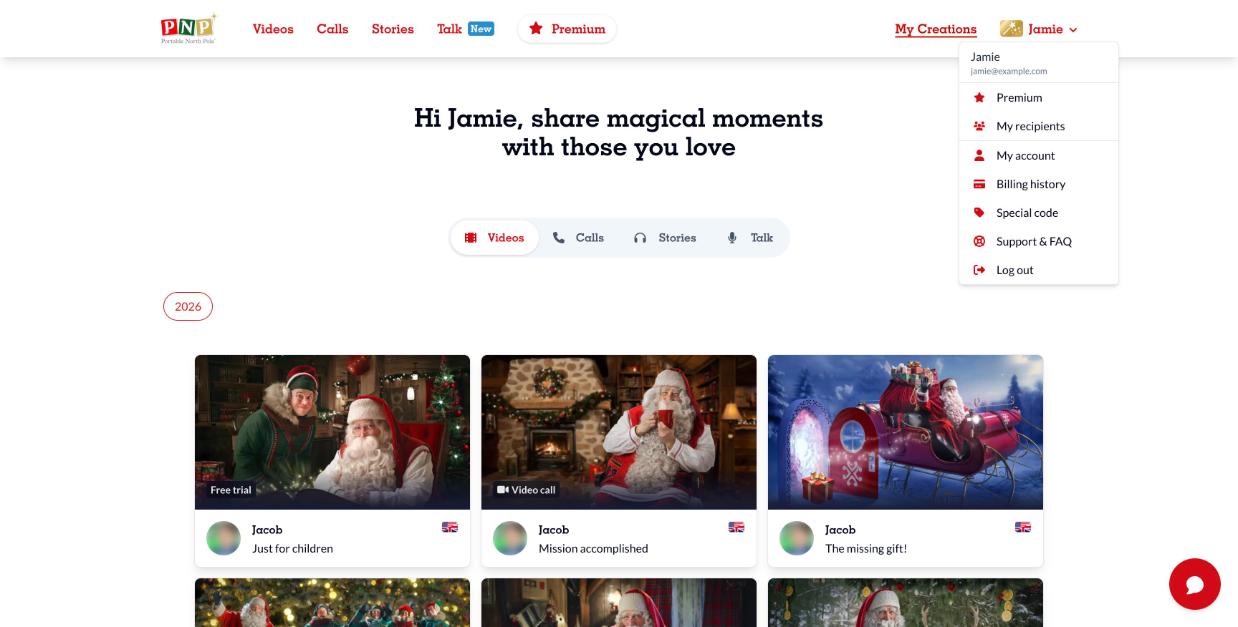
- Click your name at the top right and select My account.
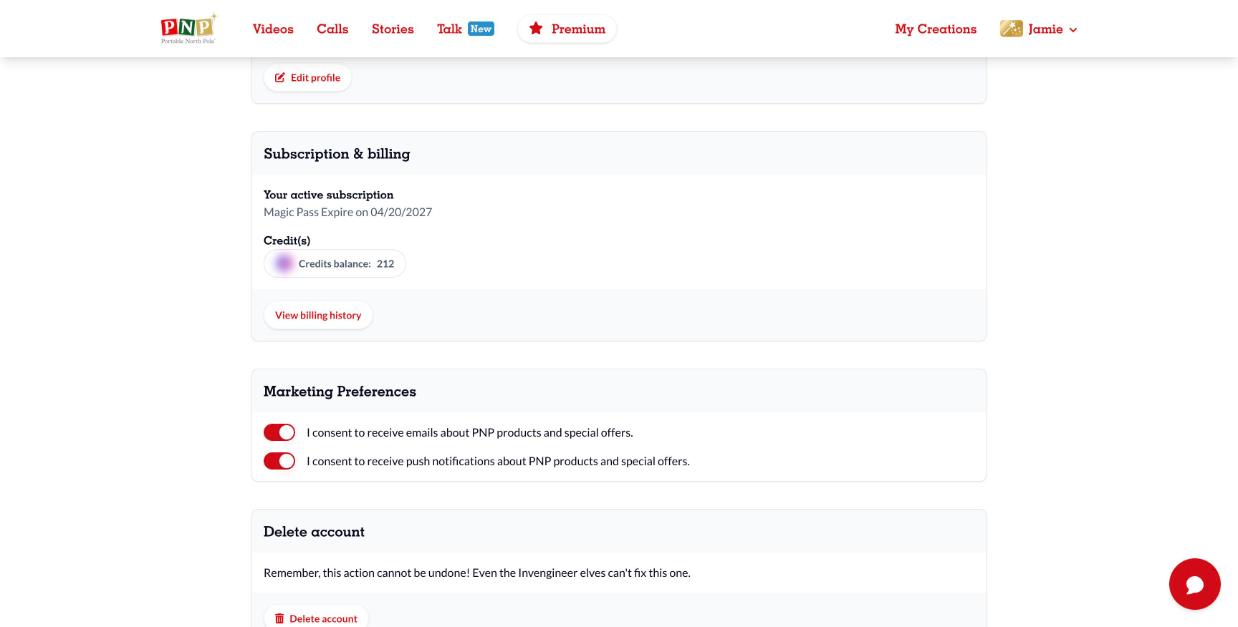
- In Subscription & billing, you will see your active subscription and its renewal date. Click Cancel subscription and confirm.
If you bought in the iPhone or iPad app (Apple)
- Open Settings on your device and tap your name.
- Tap Subscriptions.
- Tap Portable North Pole, then Cancel Subscription.
More help: Apple Support.
If you bought in the Android app (Google Play)
- Open the Google Play Store and tap your profile icon.
- Tap Payments & subscriptions > Subscriptions.
- Select Portable North Pole and tap Cancel subscription.
More help: Google Play Help.
If you paid with PayPal on the website
You can cancel from My account as described above. You can also cancel the automatic payment in PayPal: log in at paypal.com, go to Settings > Payments > Manage automatic payments, select Portable North Pole and cancel.
Good to know
- Deleting your PNP account does not cancel an Apple or Google Play subscription. Cancel it in the store first.
- Cancelling does not trigger a refund. To ask for one, see How do I request a refund? (in the Help Center).
- If you don't see your subscription, check that you are signed in with the right PNP account.
Still need help? Our elves are happy to help: contact our elves using our support request form.